Teams
A team shares hosts, keys, snippets and tunnels between people. The team lives in a Git repository or a shared folder you control; there's no Detour server and no sign-up. Every change is encrypted to the members who may see it and signed by its author.
Your Detour ID
Everyone has a Detour ID: a long string starting with detour1, the public half of your identity. Find it in Teams → My Detour ID (or Copy my Detour ID). It's safe to send over any chat; with it an admin can add you, and nothing else. Your identity is the same on all your synced devices.
Create a team
- Open the vault switcher at the top of the sidebar and choose Create team.
- Give it a Name, choose the storage (a Git repository, a cloud drive folder or an empty folder, see Storage) and Your name in the team.
- Save the recovery key that Detour shows, then confirm its last 4 characters. Without it the team can't be recovered if every owner loses their devices.
You are the team's Owner.
Add a member
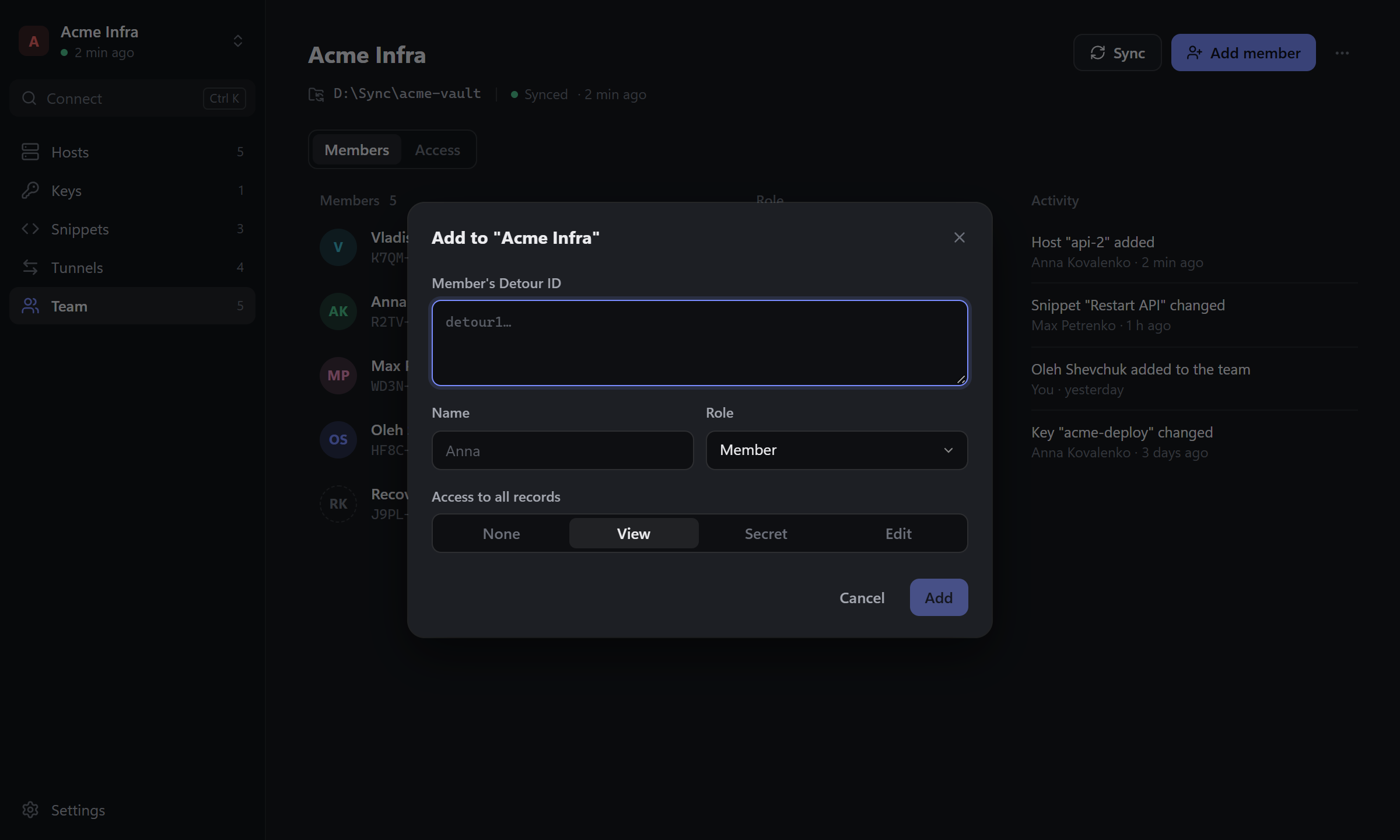
- The newcomer copies their Detour ID and sends it to you.
- On the team page click Add member, paste the ID, and enter a Name, a Role and the Access to all records they start with.
- Compare the Fingerprint shown with the one the newcomer sees on their side, over a call or another channel. If they differ, the ID was swapped on the way.
Join a team
- Vault switcher → Join team.
- Choose the team's folder or repository.
- Compare the Vault creator fingerprint with the team's creator, and enter Your name in the team.
- Send your Detour ID to an admin. Until they add you, the team shows Waiting to be added.
Working in a team
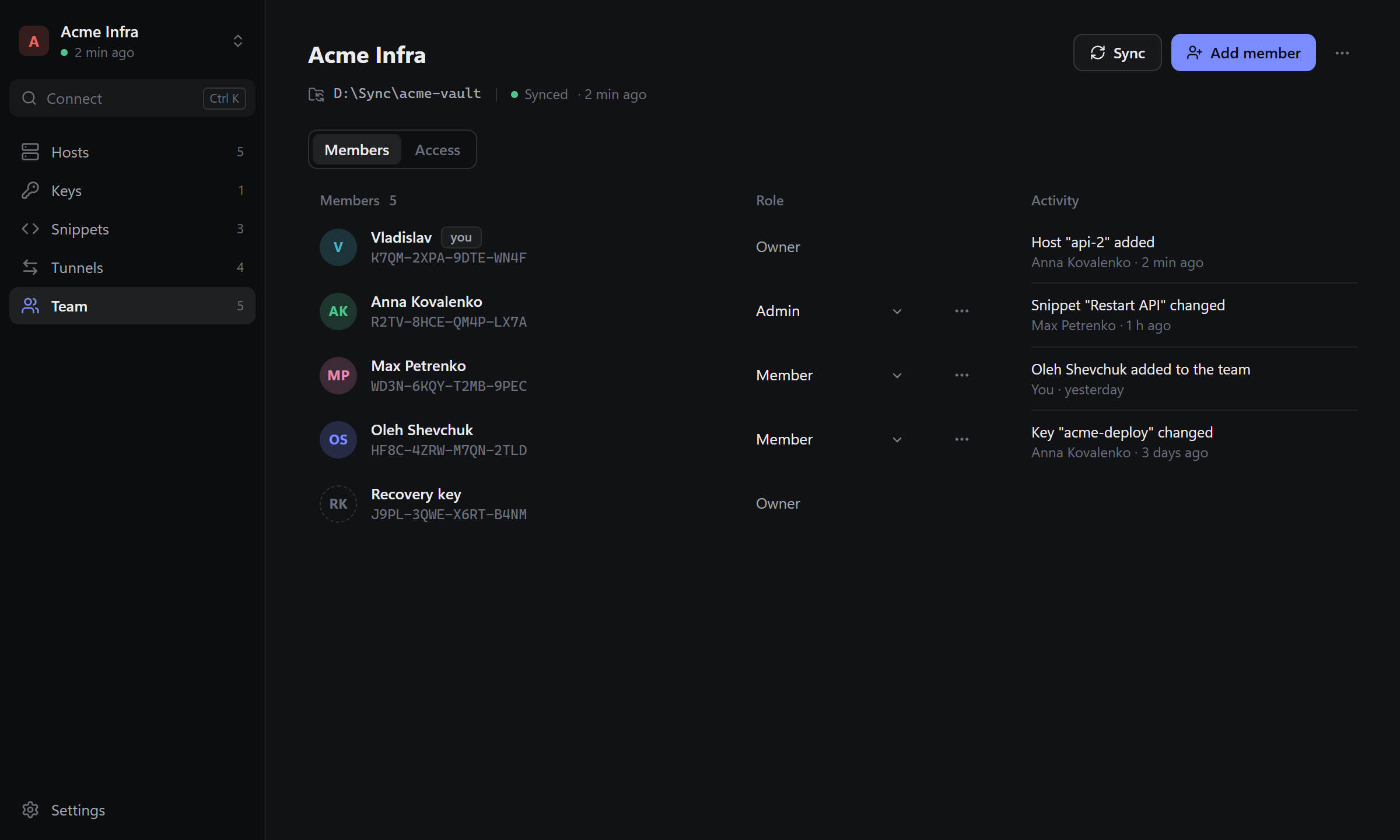
- Switch between your personal vault and teams with the vault switcher. Hosts, keys, snippets and tunnels belong to the vault that's open.
- Activity on the team page lists recent changes and who made them.
- On team hosts where you have only View access, use Personal login in the host panel to connect with your own user and key. Your personal login stays in your personal vault.
- Sync on the team page syncs right away; otherwise Detour syncs every 20 seconds and after every edit.
Leaving and removing
- ⋯ → Remove from this device or Remove from all devices takes the team off your devices. The team and your membership stay; you can reconnect anytime.
- An admin removes a member with ⋯ → Remove from team next to them. The rest of the team moves to new keys, so nothing written afterwards is readable to the removed member. What they already saw, they keep: change shared passwords and keys they had access to.
Next: Access and roles.