Terminal
Every connection opens as a tab. The first tab is the section open in the sidebar. Click a tab to switch, middle-click or × to close it, + (or Ctrl+K) to open another connection, and the folder button next to it for a new SFTP tab.
Highlighted output
Many servers send their output without colours: a fresh server's root prompt, df, ip a, logs. Detour colours such text itself:
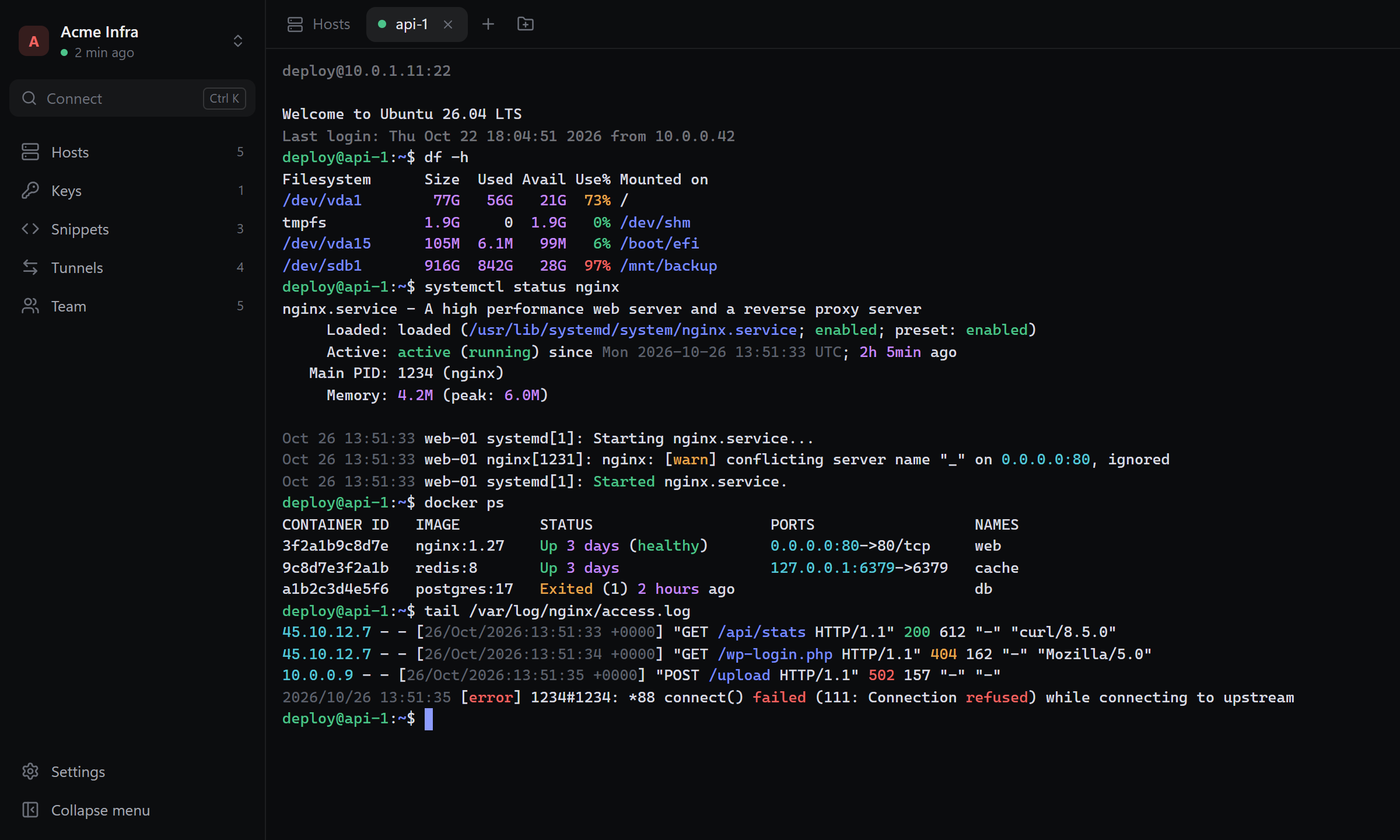
| What | Colour |
|---|---|
The prompt user@host:path$ |
user and host green, path blue |
Paths: /var/log/nginx, ~/notes, ./build, C:\Users |
blue |
Addresses: IPv4 and IPv6, host:port, MAC addresses, links |
cyan |
Sizes and times: 412M, 3.8Gi, 48ms, 3 days |
magenta |
| Percentages | green, yellow from 70%, red from 90% |
active, running, ok, healthy, Up |
green |
warning, deprecated, disabled, Exited |
yellow |
error, failed, denied, refused, inactive, dead |
red |
HTTP status codes in HTTP/1.1 200 and access logs |
2xx green, 3xx cyan, 4xx yellow, 5xx red |
| Dates and times | dimmed |
The colours are your terminal theme's, so they suit any theme. Text a program colours itself (ls --color, systemctl, a coloured prompt from .bashrc or oh-my-zsh) keeps its colours, and full screen programs like vim, htop, less or tmux are left as they are. Very fast output, like cat of a large file, goes out without highlights until it slows down. What you type isn't coloured: it comes back one letter at a time.
Turn it off in Settings → Terminal → Highlight output. Text already on the screen keeps its colours.
Split panes
Right-click in the terminal and choose Split right or Split down, or press Ctrl+Shift+D / Ctrl+Shift+E. Each pane is its own session to the same host. A tab holds up to 6 panes; drag the dividers to resize them.
Search
Ctrl+Shift+F (or Find in the right-click menu) searches the scrollback. Enter goes to the next match, Shift+Enter to the previous one, Esc closes the search.
Copy and paste
Choose how it works in Settings → Terminal → Copy and paste:
| Right click, Ctrl+C and Ctrl+V | Ctrl+Shift+C and Ctrl+Shift+V | |
|---|---|---|
| Works like | the terminal on your system | Termius |
| Copy | select text, then Ctrl+C or right click | Ctrl+Shift+C |
| Paste | Ctrl+V or right click | Ctrl+Shift+V |
| Ctrl+C with nothing selected | interrupts the running program | always goes to the server |
| Right click | copies the selection, or pastes | opens a menu |
Ctrl+Shift+C and Ctrl+Shift+V work in both modes.
When the connection drops
The terminal says Connection closed. Enter: reconnect. Press Enter in that pane to connect again. If a connection fails, the reason is shown in the terminal with Enter: retry.
Running a command on connect
Snippets open a new terminal on the host you pick and run their command there.
Settings
Theme, font size, scrollback length and highlighting are in Settings → Terminal. By default a terminal takes the app's theme; see Themes.