Files (SFTP)
An SFTP tab shows this computer on the left and a server on the right. Open one with Files in a host's side panel or ⋯ menu, or with the folder button next to the tabs: a new SFTP tab asks which host to open (type to search, Enter to pick). You can have as many SFTP tabs as you like, to the same host or different ones.
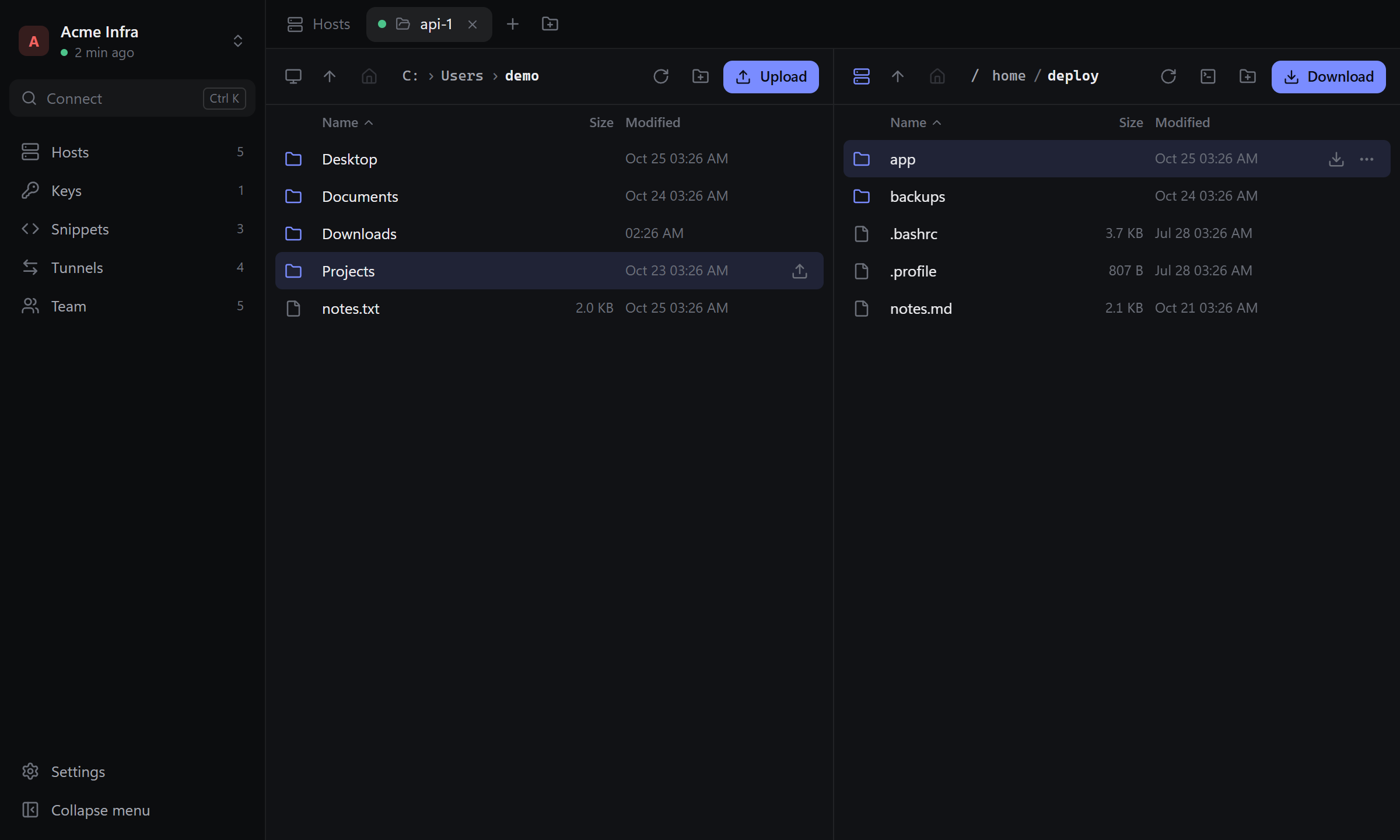
The server side starts in your home folder there, this computer's side in your home folder here. Drag the line between them to make one side wider; double-click it to split the tab in half again.
Moving around
- Double-click a folder or press Enter to open it; Backspace goes up.
- Click the path to type one (Ctrl+L). On Windows, going up from a drive (
C:) lists all drives. - F5 refreshes. Sort by clicking a column header.
- Terminal in this folder (server side toolbar) opens a terminal already
cd'd into the folder.
Copying between the sides
- Upload sends what is selected on this computer into the folder open on the server; Download brings what is selected on the server into the folder open on this computer.
- Enter on a file does the same: on the left it uploads, on the right it downloads.
- Drag files and folders from one side to the other. You can also drag them from your system's file manager onto the server side.
- Folders go with everything inside. If something with that name is already on the server, Detour asks before replacing it; a download never overwrites a file here and gets a free name such as
report (2).pdfinstead.
Editing a server's file
- Edit (right click or ⋯) downloads a copy and opens it in the app your system uses for that file. Every time you save it, Detour sends it back to the server.
- Edit in… lets you pick the program: the editors Detour finds (VS Code, Cursor, Notepad++, Sublime Text and others) or any other program. With Remember, Edit uses that program from then on. Change it in Settings → Files.
- Saved changes go back while the SFTP tab is open. The copies are kept in your system's temporary folder.
On this computer's side, Open opens a file with its usual app, and Edit in… with a program you pick.
Selecting and changing files
- Ctrl+click adds to the selection, Shift+click selects a range, Ctrl+A selects everything, Esc clears it.
- Right click a row (or use ⋯) for everything you can do with it. With several items selected, the menu applies to all of them.
- F2 renames, Del deletes (with a confirmation: deleting on a server can't be undone). Folders are deleted with their contents.
- Permissions sets read, write and execute for owner, group and others, or an octal mode such as
755. - Copy path copies the full path. On this computer's side, the folder button in the toolbar makes a new folder.
Transfers
Transfers show progress and speed, and can be cancelled. A transfer that fails or is cancelled never leaves a half-written file: uploads are written to a temporary file and only then renamed over the original, and partial downloads are removed.