Connecting to a host
Add a host
Open Hosts and click Add host.
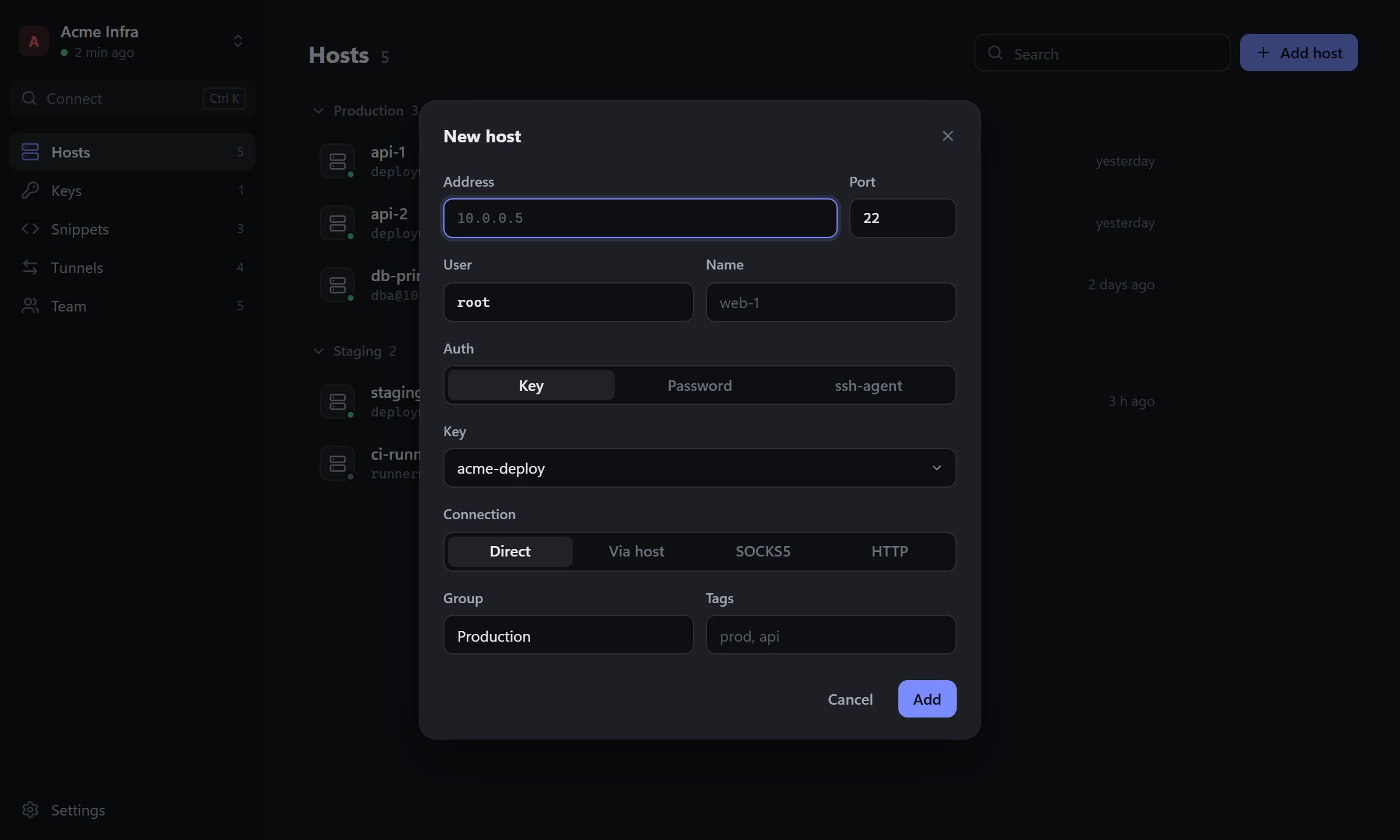
| Field | What to enter |
|---|---|
| Address | A domain name or an IP address |
| Port | 22 unless the server uses another one |
| User | The login on the server |
| Name | How the host appears in lists. Empty means the address |
| Auth | Key, Password or ssh-agent |
| Key | The key to log in with, when Auth is Key. See Keys |
| Connection | Direct, or through a jump host or proxy |
| Group, Tags | Optional: hosts are listed by group, and search also matches tags |
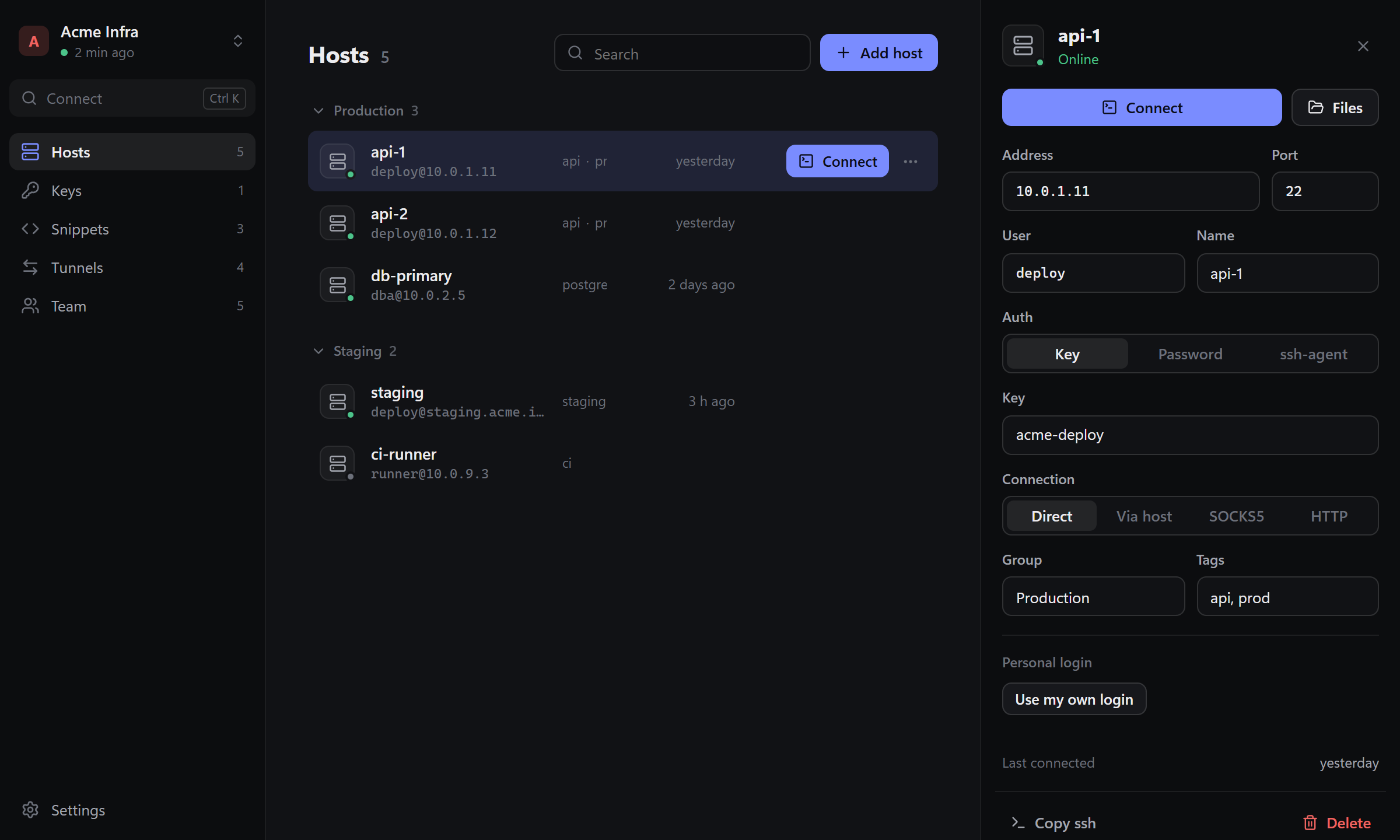
Click Add. The host opens in the side panel. To change it later, edit the fields there and click Save (or press Enter); Discard or Esc drops the changes.
Connect
Click Connect in the side panel, double-click the host in the list, or press Ctrl+K, type part of the name or address and press Enter.
The server's key
The first time you connect, Detour shows the server's key fingerprint and asks you to trust it. If you can, compare it with the fingerprint your hosting provider or server admin gives you (on the server: ssh-keygen -lf /etc/ssh/ssh_host_ed25519_key.pub). After Trust and connect the key is remembered.
If the key later changes, Detour stops before sending any password or key and shows the old and new fingerprints. Choose Replace key only if you know why it changed, for example after reinstalling the server.
Passwords and passphrases
- With Password auth you can save the password in the vault or pick Ask when connecting.
- If a key or password isn't saved, the terminal asks for it. After a successful login Detour offers to save it.
Other actions
The ⋯ menu on a host has Files (SFTP), Copy ssh command, Duplicate and Delete. Deleting shows Undo for a few seconds.