Tunnels
Tunnels forward ports over an SSH connection, the same as ssh -L, ssh -R and ssh -D.
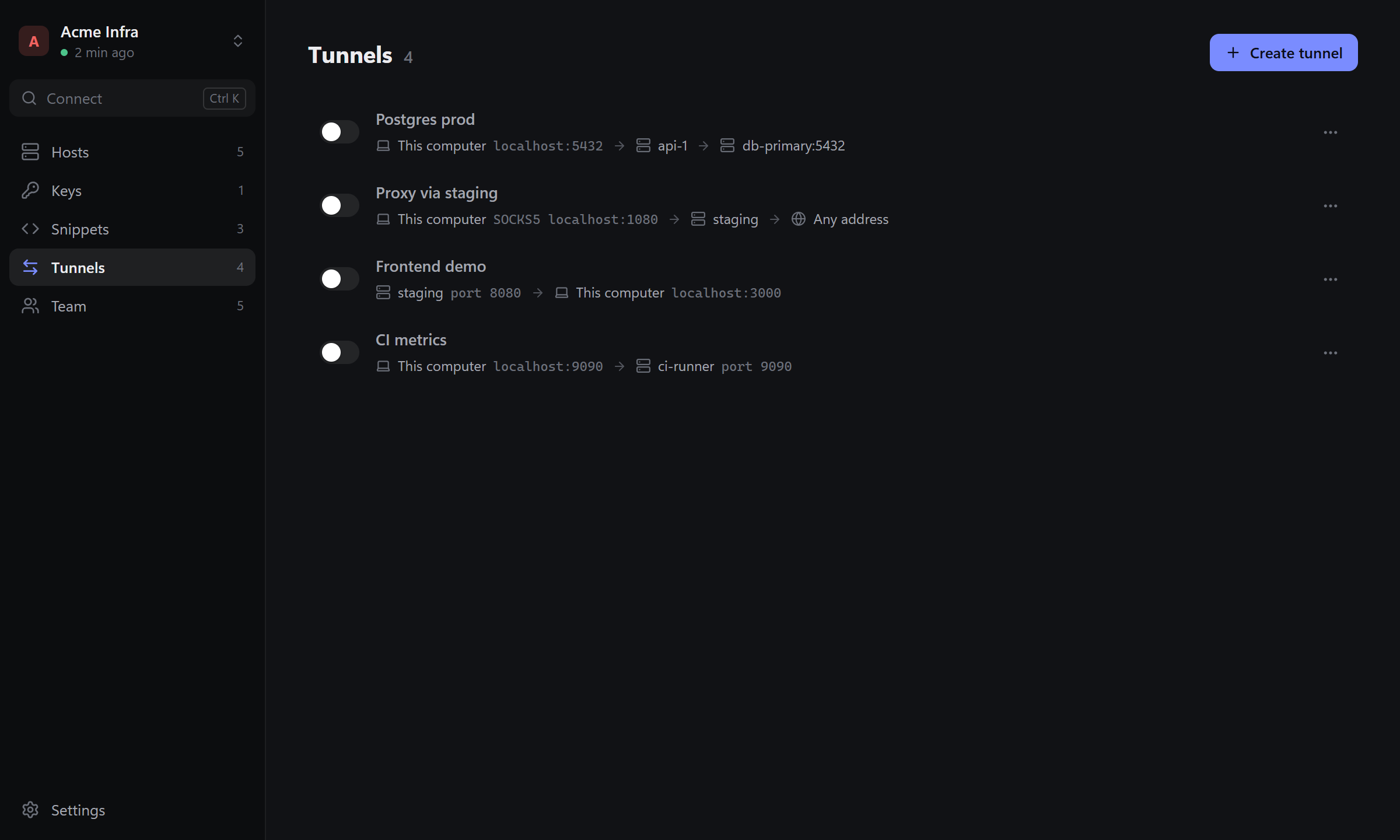
Create a tunnel
Open Tunnels, click Create tunnel and pick a type:
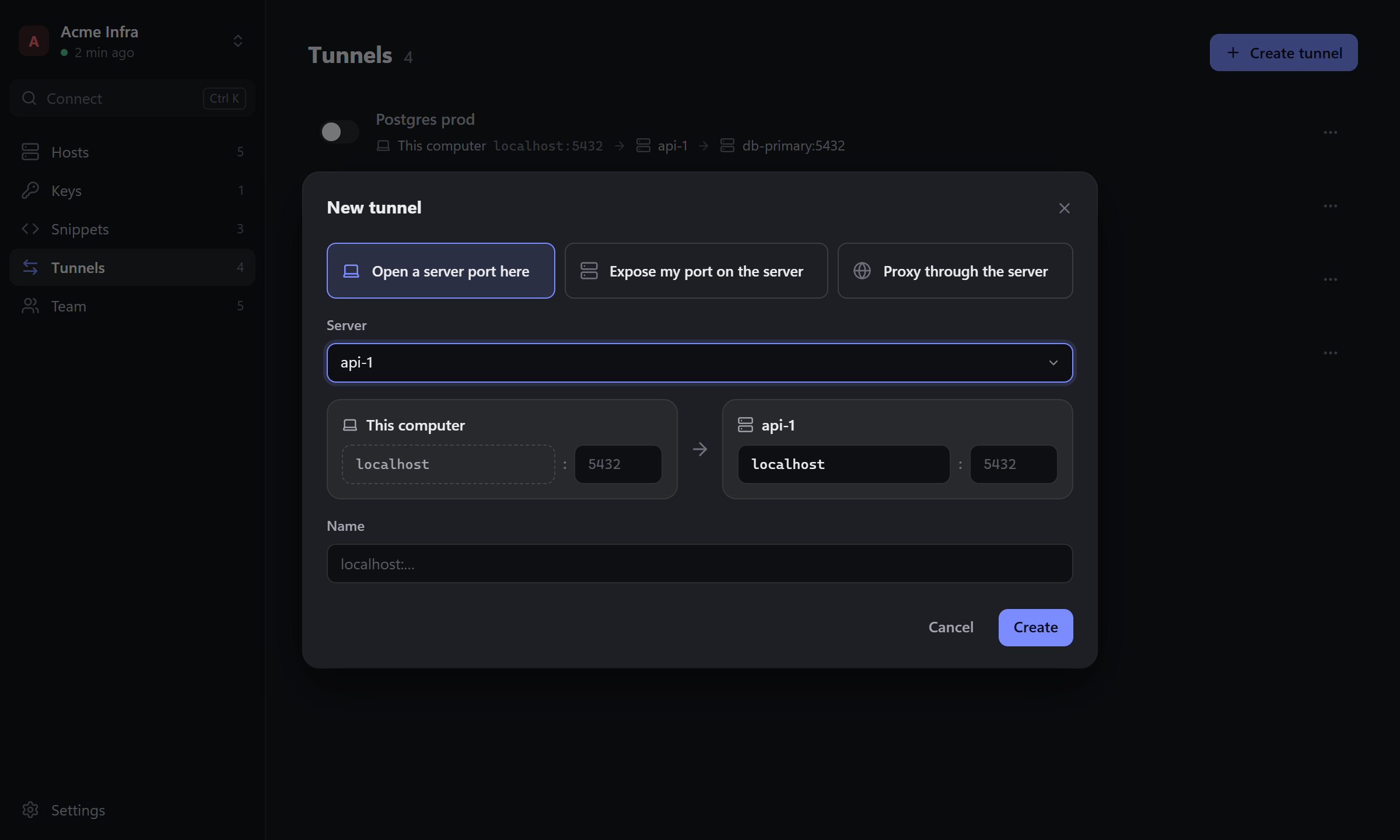
| Type | Same as | What it does |
|---|---|---|
| Open a server port here | ssh -L |
A port on this computer (localhost:5432) leads to an address as seen from the server. Use it to reach a database or admin panel that only listens on the server or its private network. |
| Expose my port on the server | ssh -R |
A port on the server leads back to a service on this computer. Use it to show a local dev server to someone who can reach the server. |
| Proxy through the server | ssh -D |
A SOCKS5 proxy on localhost:<port>. Point a browser or another app at it, and its traffic goes out through the server. |
Choose the Server, the ports and the target address, and optionally a Name (Detour suggests one). Click Create.
Open and close
The switch next to a tunnel opens and closes it. An open tunnel shows how many connections go through it, and the ⋯ menu copies its local address.
A tunnel can't open if its port is already in use, either by another program or by another of your tunnels; Detour says which. Remote tunnels also need the server to allow them (AllowTcpForwarding in sshd_config).
Tunnels close when you lock Detour or quit it.